

A Course lives inside a Term and holds everything specific to one class: its instructor, meeting schedule, grading system, and every Assignment and Assessment due in it.
Adding a course
From a term’s … menu, choose Add Course. The form is long enough to split across two views here.
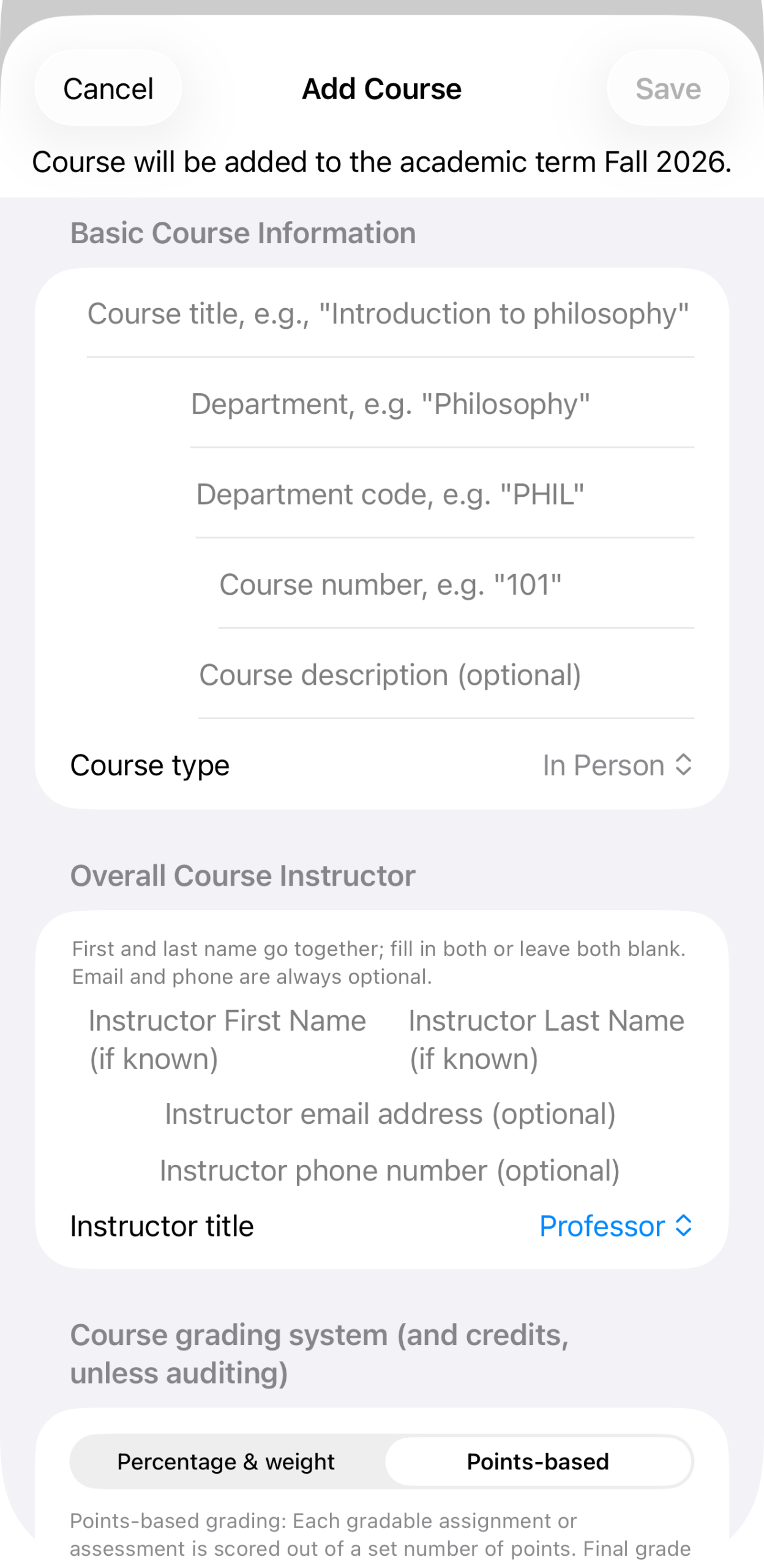
Basic Course Information — title, department, department code, course number, optional description, and course type (In Person, Online, Hybrid, etc.). Below that, Overall Course Instructor — first and last name go together, fill in both or leave both blank; email and phone are always optional; instructor title defaults to “Professor.”
Scrolling down:
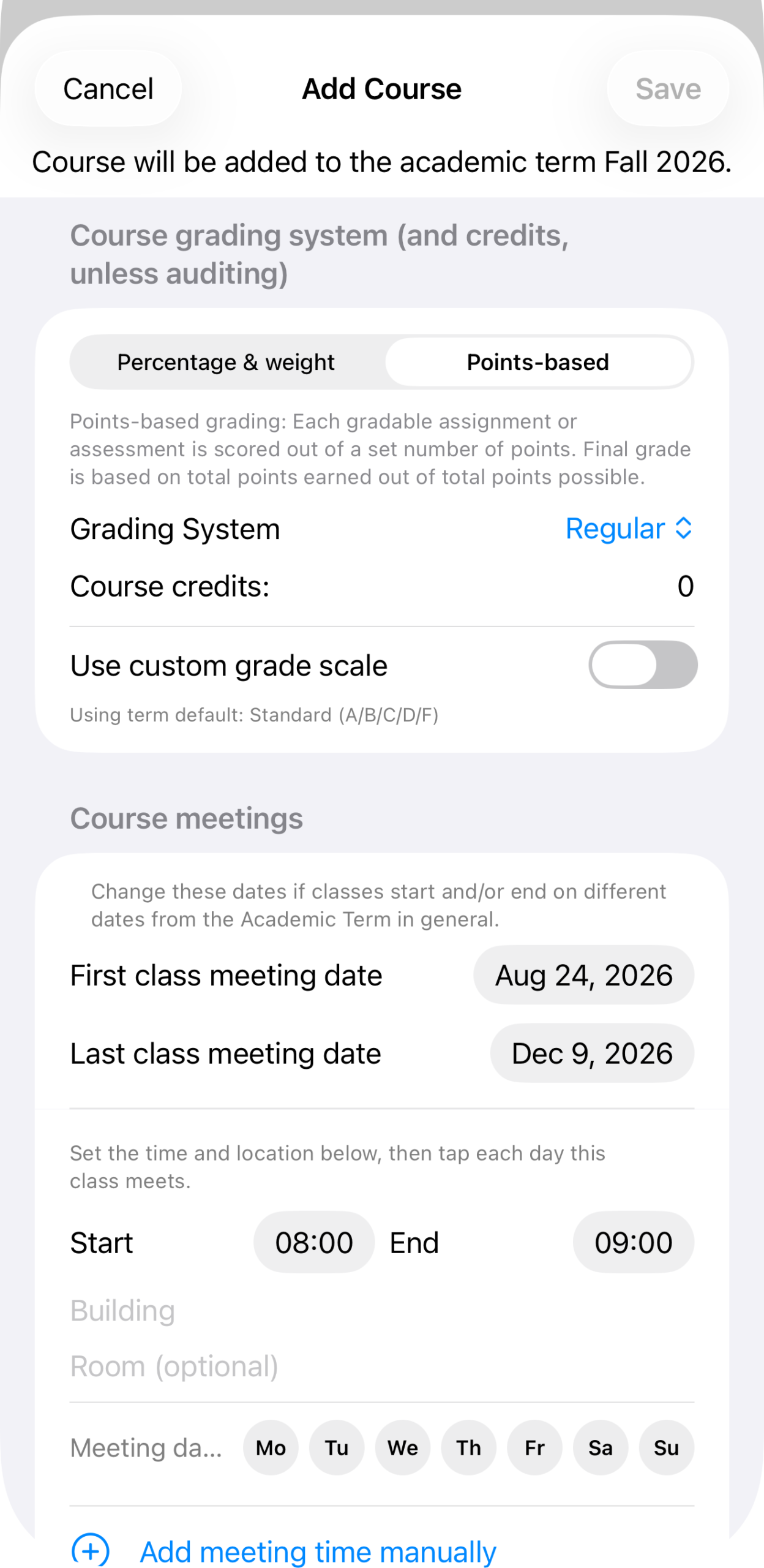
Course grading system — choose Percentage & weight or Points-based, then a grading system (Regular, etc.), course credits, and an optional custom grade scale (otherwise it uses the term’s default, Standard A/B/C/D/F). Course meetings — first and last class meeting dates default to the term’s dates but can be changed if this course runs on a different schedule; set a start and end time, then tap each day it meets. Add meeting time manually covers courses that meet at different times on different days.
Tap Save, and the course is added to the term.
The course detail view
A course’s detail view centers on where things actually stand: your current grade, and a calculator for what you’d need on the rest of the term’s work to land at a target grade.
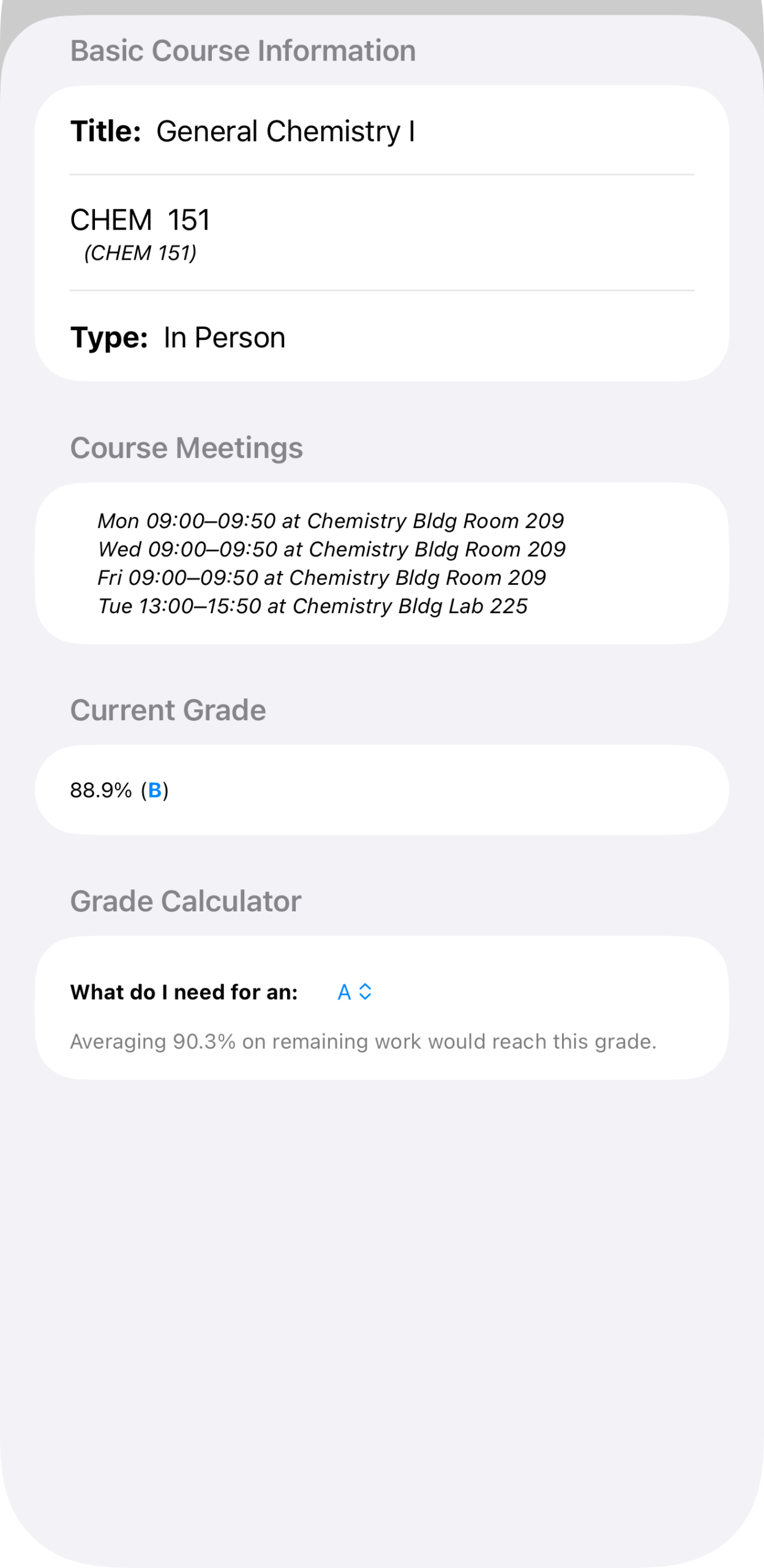
General Chemistry I (CHEM 151) — basic info, course meetings, current grade 88.9% (B), and “Averaging 90.3% on remaining work would reach this grade” for a target of A.
Adding an assignment or assessment from here
A course’s … menu is the shared entry point for both Add Assignment and Add Assessment, plus Edit Course.
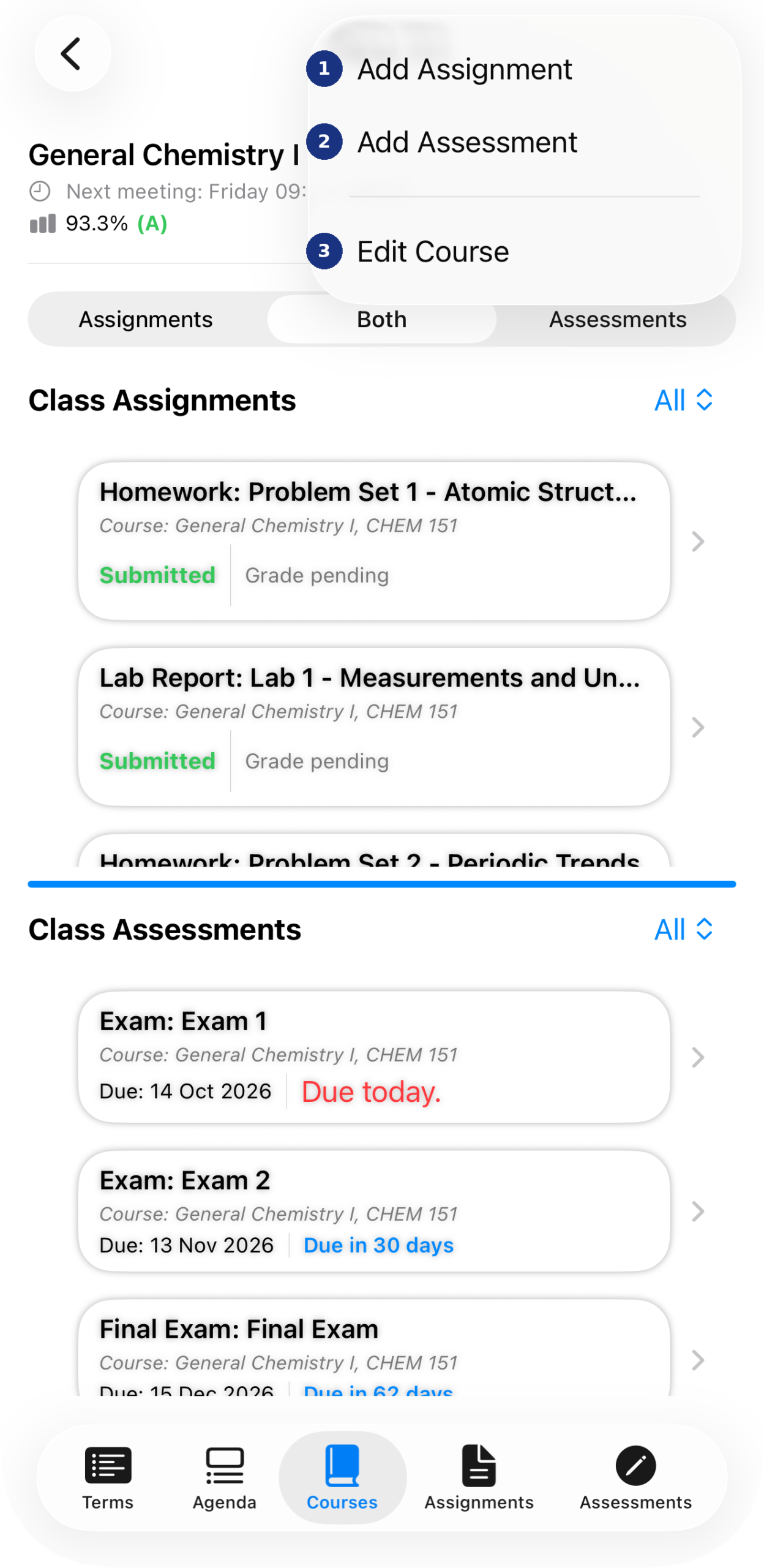
The course-level “…” menu. This is the same menu whether you’re about to add an assignment or an assessment — see Assignments and Assessments for what each form asks for.