

Settings covers where the app opens, how it syncs with iCloud, how it reminds you, and how it estimates and breaks down work. This page runs through the root list top to bottom.
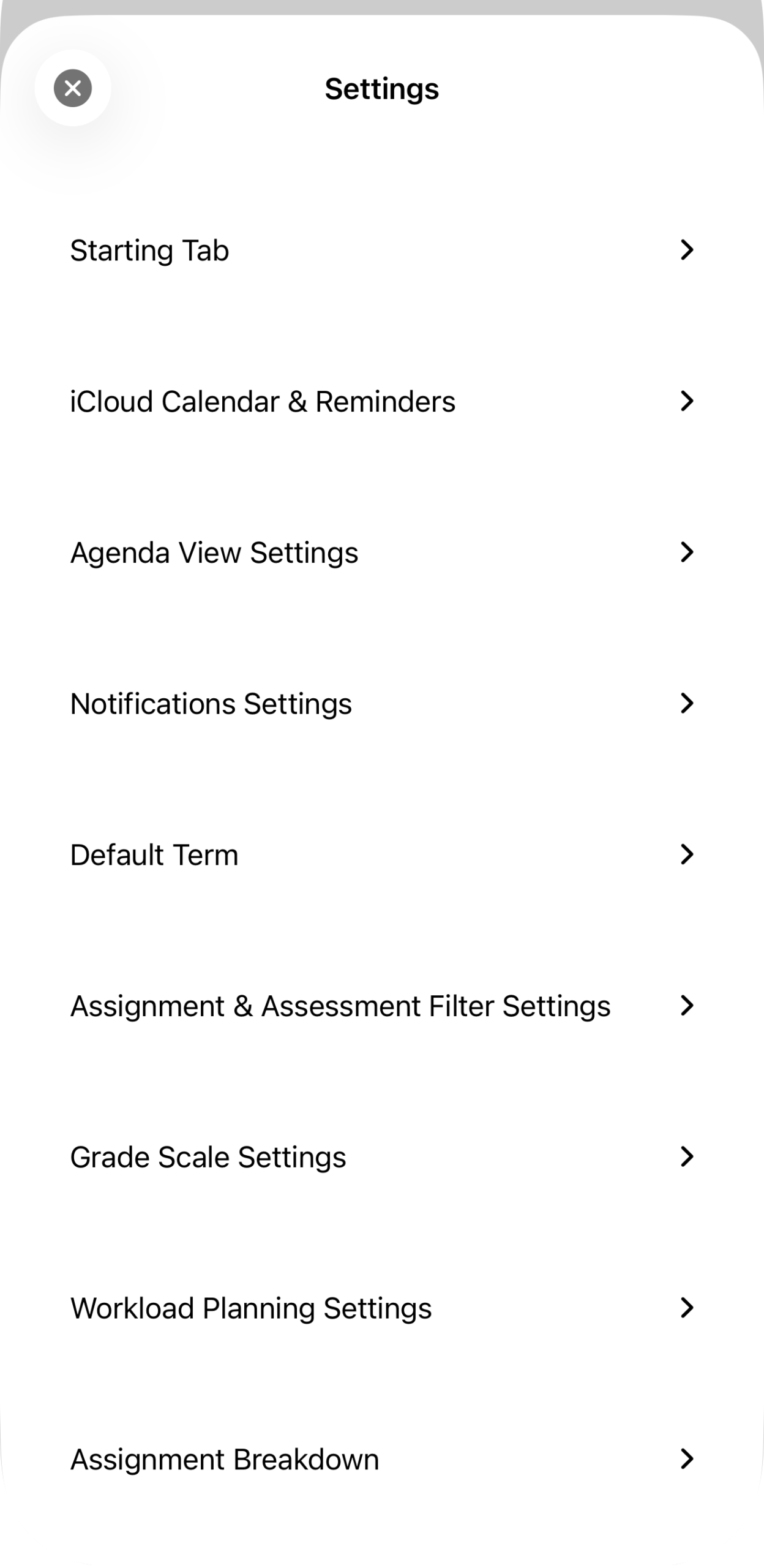
Starting Tab · iCloud Calendar & Reminders · Agenda View Settings · Notifications Settings · Default Term · Assignment & Assessment Filter Settings · Grade Scale Settings · Workload Planning Settings · Assignment Breakdown.
Starting Tab
Choose which tab greets you on launch.
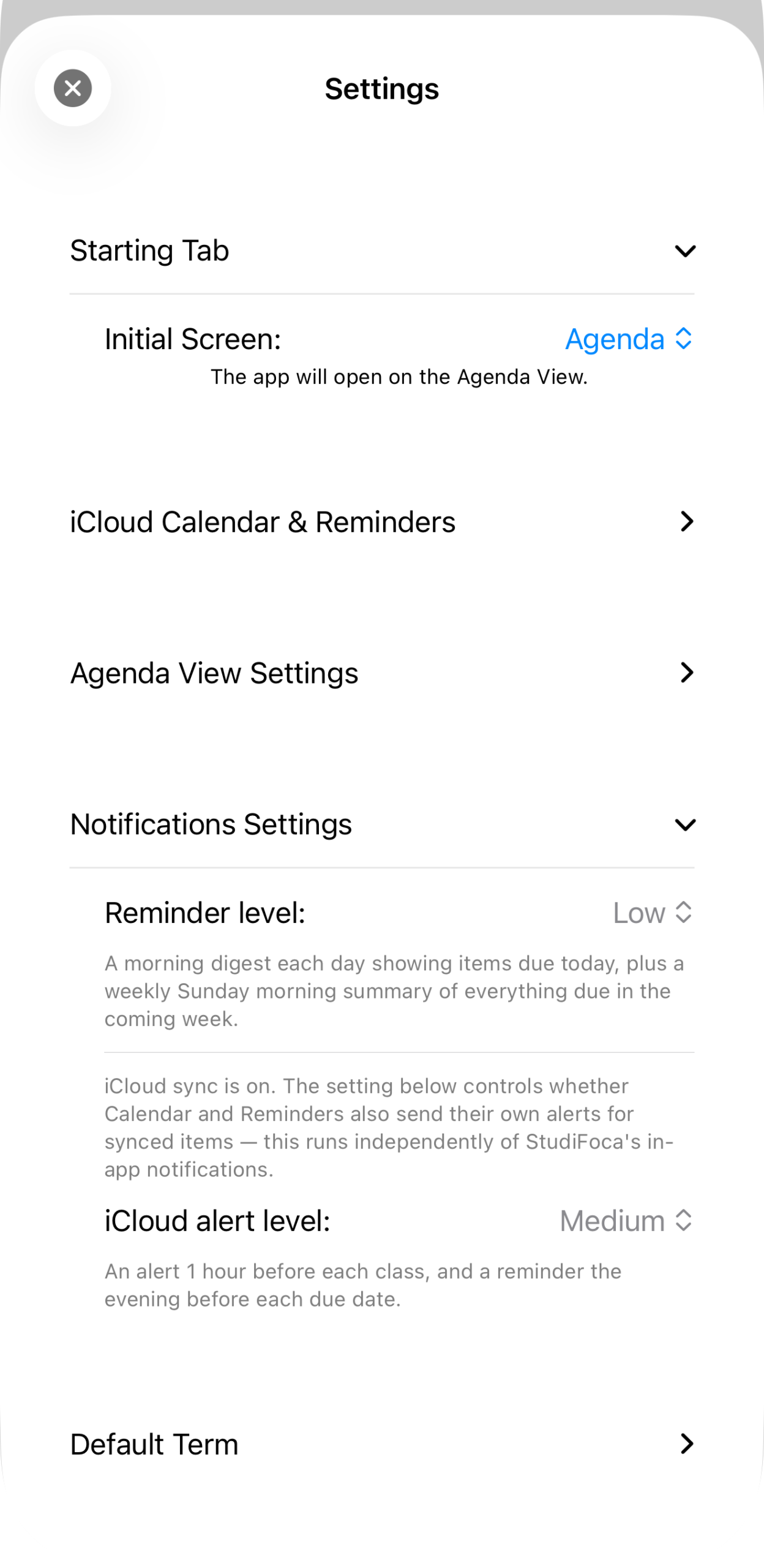
Initial Screen set to Agenda — “The app will open on the Agenda view.” Terms or Courses are better picks while you’re still setting things up; Agenda is worth switching to once a term has courses and due dates flowing into it.
iCloud Calendar & Reminders
Turn on sync, choose what syncs where, and trigger a manual sync for the selected term.
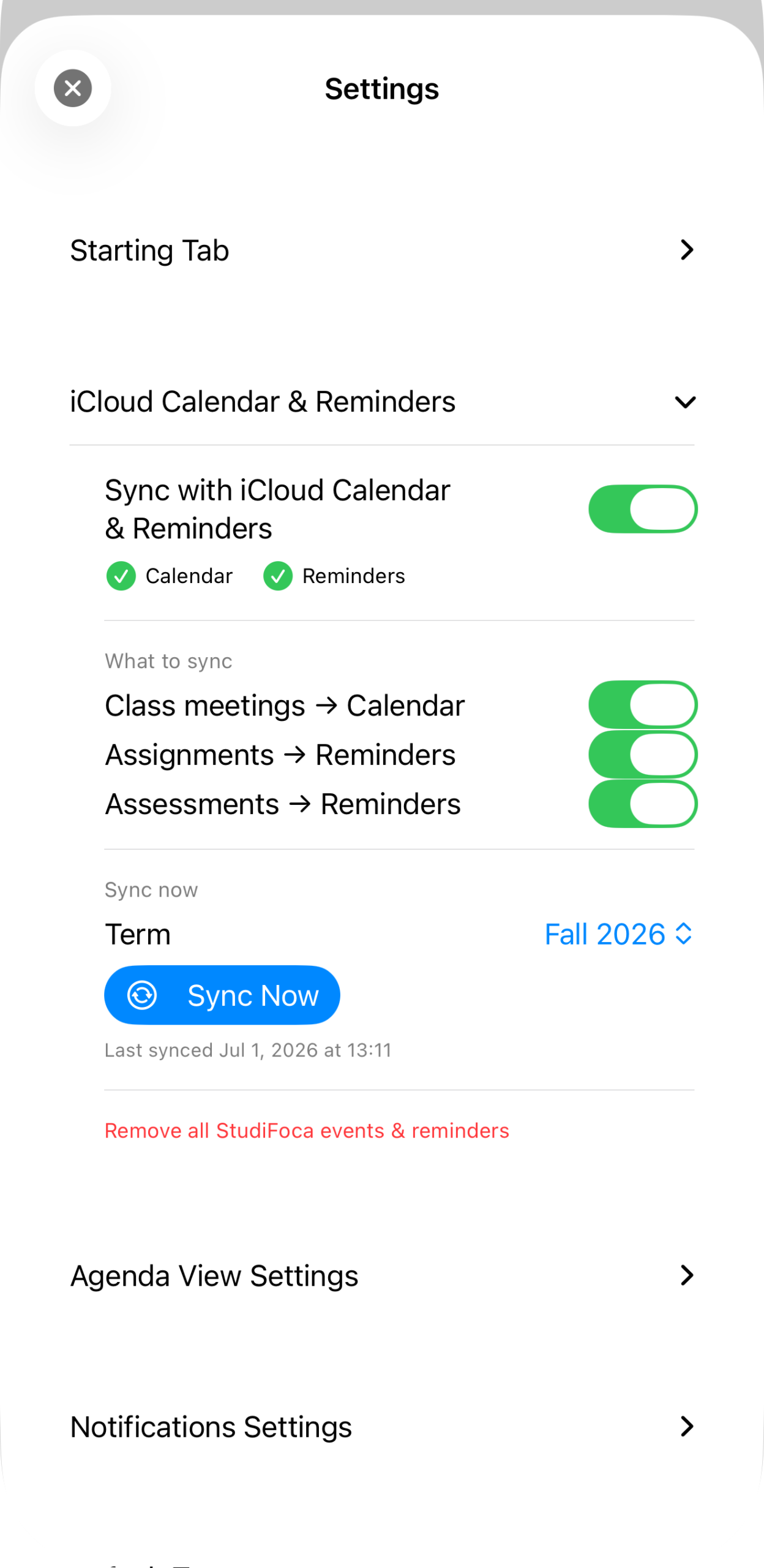
Sync enabled for Calendar and Reminders both; class meetings → Calendar, assignments and assessments → Reminders, each independently toggleable. Full walkthrough in Syncing steps to Reminders.
Remove all StudiFoca events & reminders clears everything StudiFoca has synced, without affecting anything you created yourself in Calendar or Reminders.
Notifications Settings
Two separate levels live here, and it’s worth keeping them apart in your head. Reminder level controls StudiFoca’s own in-app notifications. iCloud alert level controls whether Calendar and Reminders additionally send their own alerts for the items StudiFoca has synced into them — it runs independently of StudiFoca’s notifications.
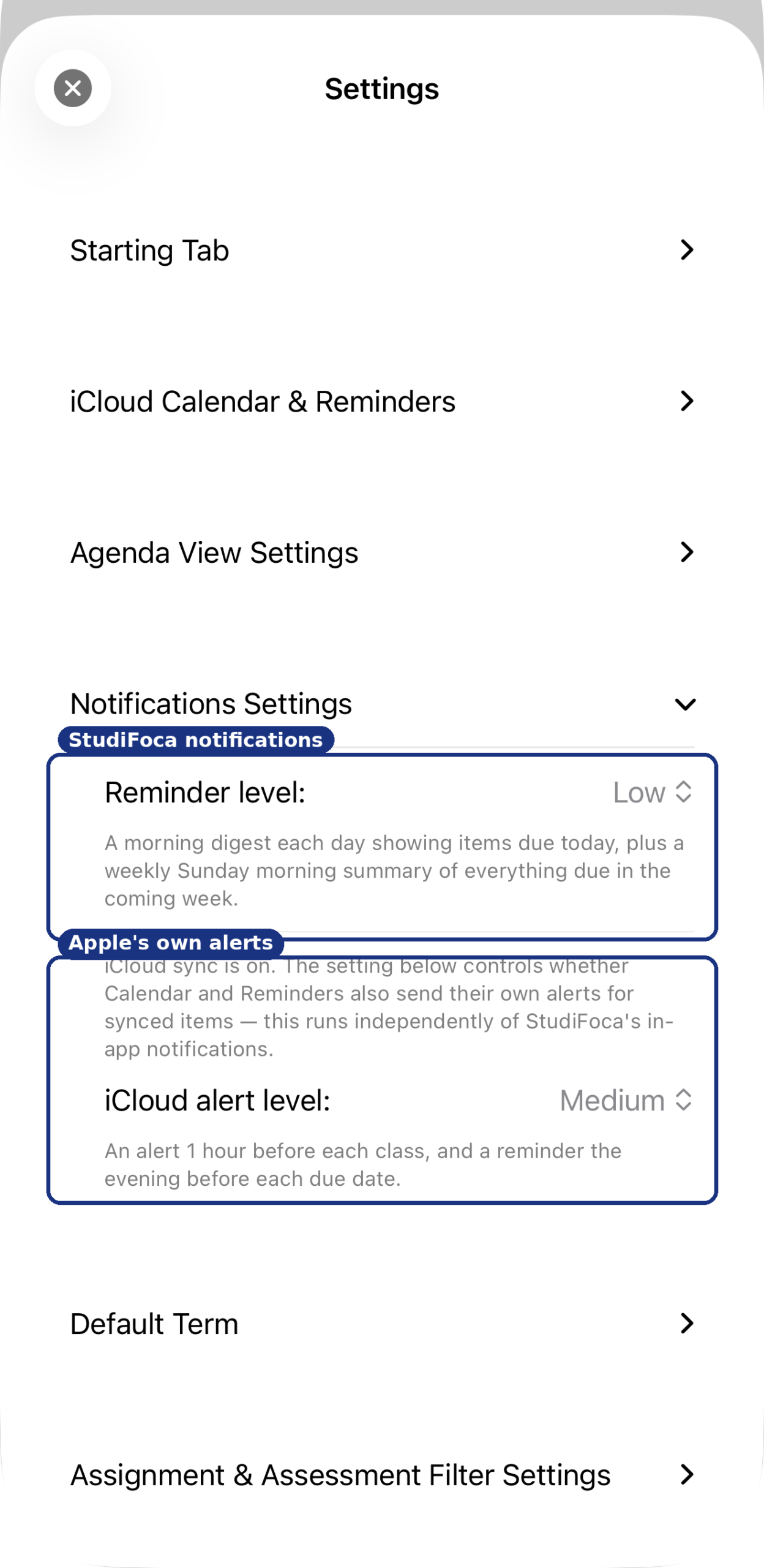
Reminder level: Low. iCloud alert level: Medium — “An alert 1 hour before each class, and a reminder the evening before each due date.” For what each Reminder level actually sends, see Reminders & notification levels.
Assignment Breakdown: Step Templates
Every assignment type — Paper, Lab Report, Discussion, and so on — has its own template of suggested steps, used whenever you tap Start Working. Edit these to match how you actually work, and every future breakdown of that type follows suit.
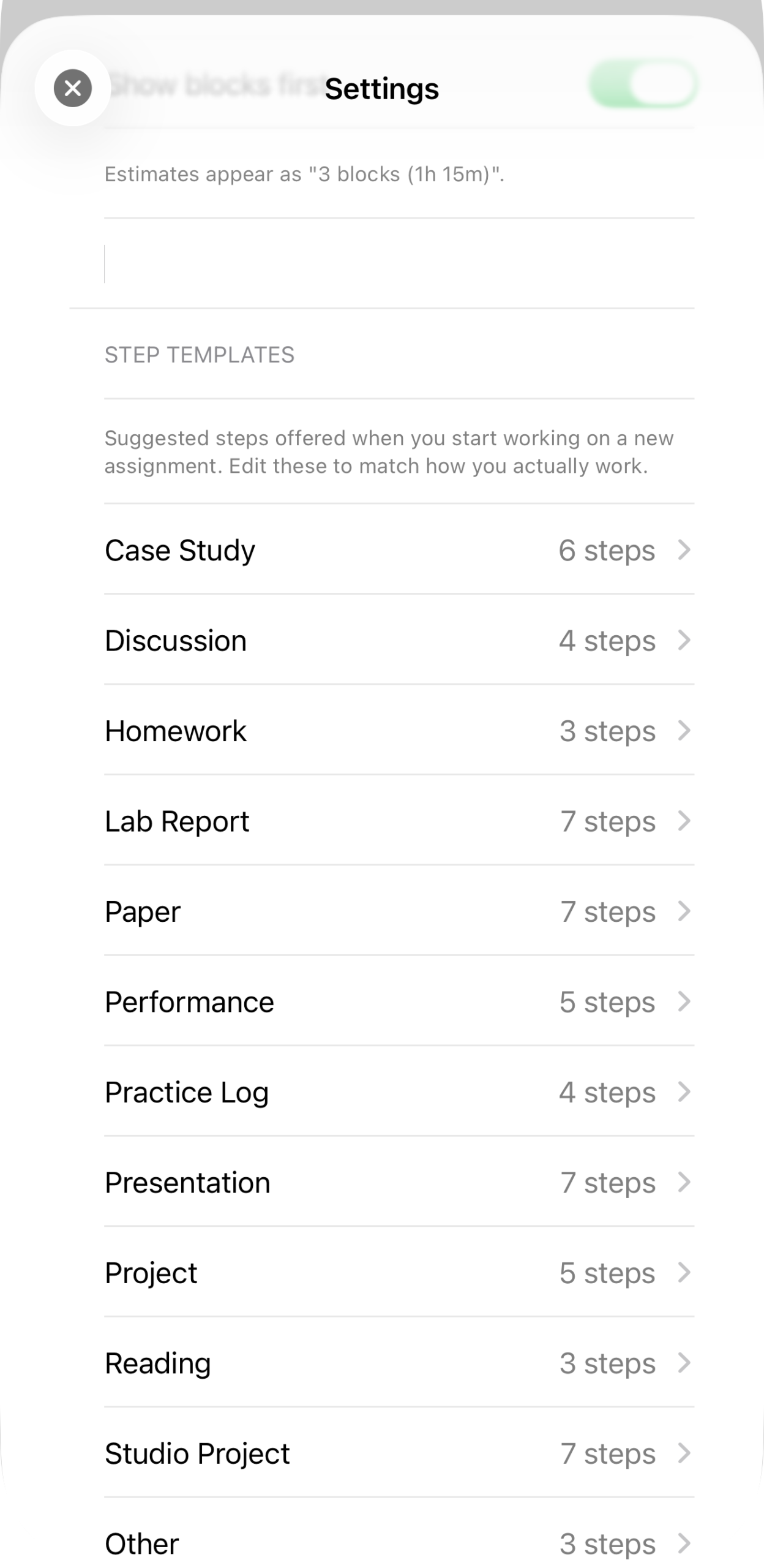
The full list of templates: Case Study (6 steps), Discussion (4), Homework (3), Lab Report (7), Paper (7), Performance (5), Practice Log (4), Presentation (7), Project (5), Reading (3), Studio Project (7), Other (3).
Tapping into one shows its steps and lets you adjust each one’s block estimate, rename it, remove it, or add a new one.
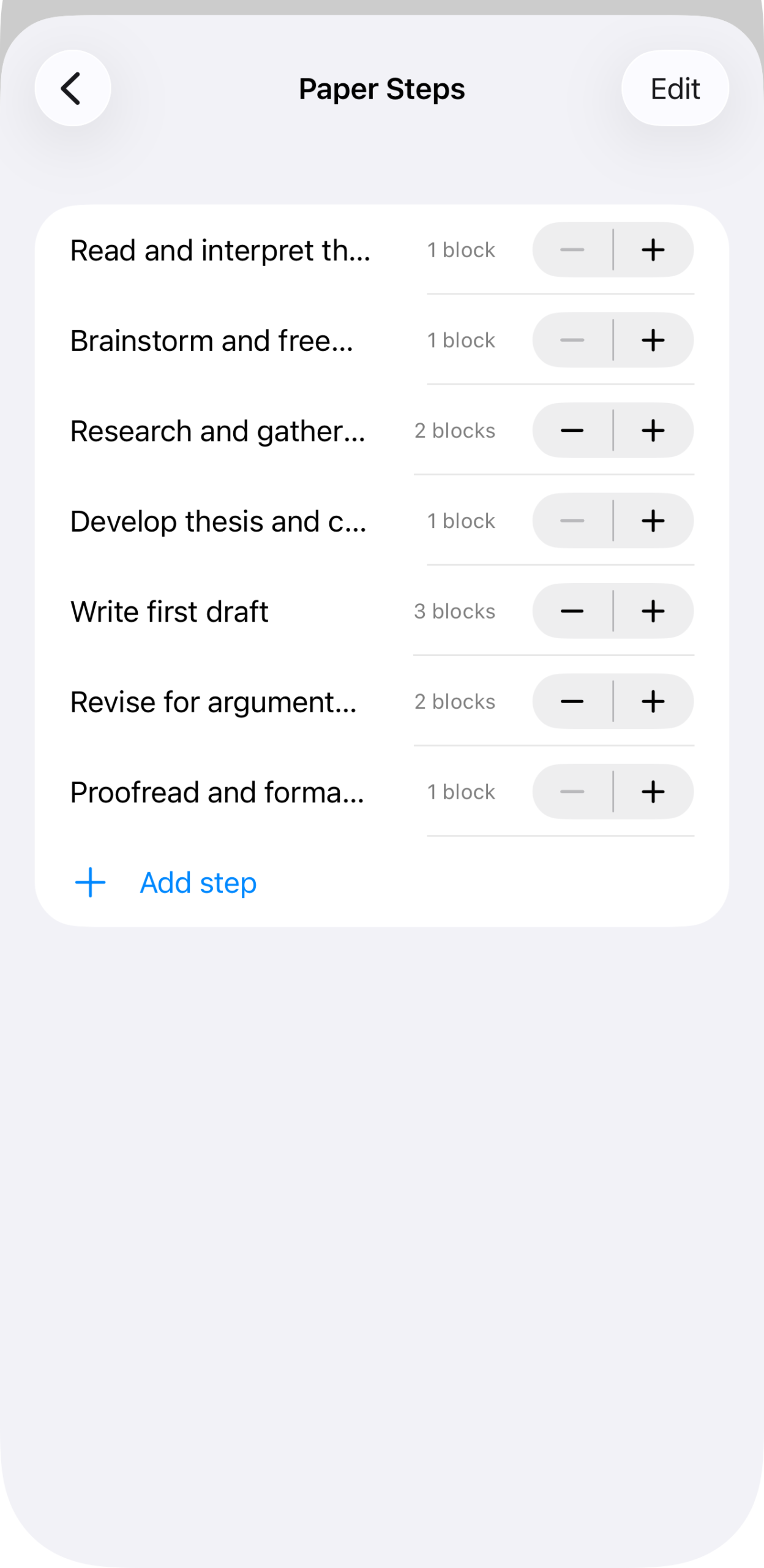
Paper Steps: Read and interpret the prompt, Brainstorm and freewrite, Research and gather sources (2 blocks), Develop thesis and create outline, Write first draft (3 blocks), Revise for argument and clarity (2 blocks), Proofread and format citations — plus Add step.
Changes here only affect breakdowns generated after you save them; assignments already broken down keep the steps they were given.
The rest of the list
Agenda View Settings, Default Term, Assignment & Assessment Filter Settings, Grade Scale Settings, Workload Planning Settings cover smaller, more self-explanatory preferences — what the Agenda shows by default, which term opens first, the default filters on the Assignments and Assessments tabs, your school’s grade scale, and how the workload heat map weighs things. None of these need a dedicated walkthrough; open one and it explains itself.
The last settable item is the Label colors; these control what color bar appears next to each type of Assignment or Assessment. By default, these are toggled off, and each of Assignments and Assessments can have their labels enabled or disabled separately. Labels show up as a small colored band next to an Assignment or Assessment, allowing types of assignments to be visually distinctive in lists.
Finally, at the bottom of the settings sheet is a set of links. The Research & Sources link points at a collection of the sources I used to make decisions about how to configure the app’s default settings, and the last three are links to a portal where you can Report a Bug, Request a Feature, or provide General Feedback. For convenience, the current app version and build number are provided at the bottom; long-tapping on them will enable the option to Copy diagnostic info to the clipboard, for including in any report.